Faster Ordering
Allow customers to browse and place orders without waiting for a cashier.
Let customers browse the menu, customize their meals and place orders from a modern touchscreen kiosk, fully connected to your Karenderia restaurant system.
A restaurant self-ordering kiosk lets customers order at their own pace while your staff focus on preparing and serving food.
Allow customers to browse and place orders without waiting for a cashier.
Add another ordering channel during busy restaurant hours.
Customers can browse products, options and add-ons at their own pace.
Kiosk orders use the restaurant's existing menu and ordering workflow.
Five steps, from the welcome screen to the order number.
Try the kiosk as a customer in your browser or on an Android device, then log in to the merchant and admin panels.
Open the kiosk in your browser and place an order as a customer, from the welcome screen to the order number.
Open SPA Kiosk Demo Demo link will be available soon.Install the kiosk app on an Android device and try the same ordering flow on real hardware.
Download APK Demo Demo link will be available soon.Explore the Kiosk dashboard, devices, settings and promotional banners.
Log in to the KMRS admin panel as the platform owner.
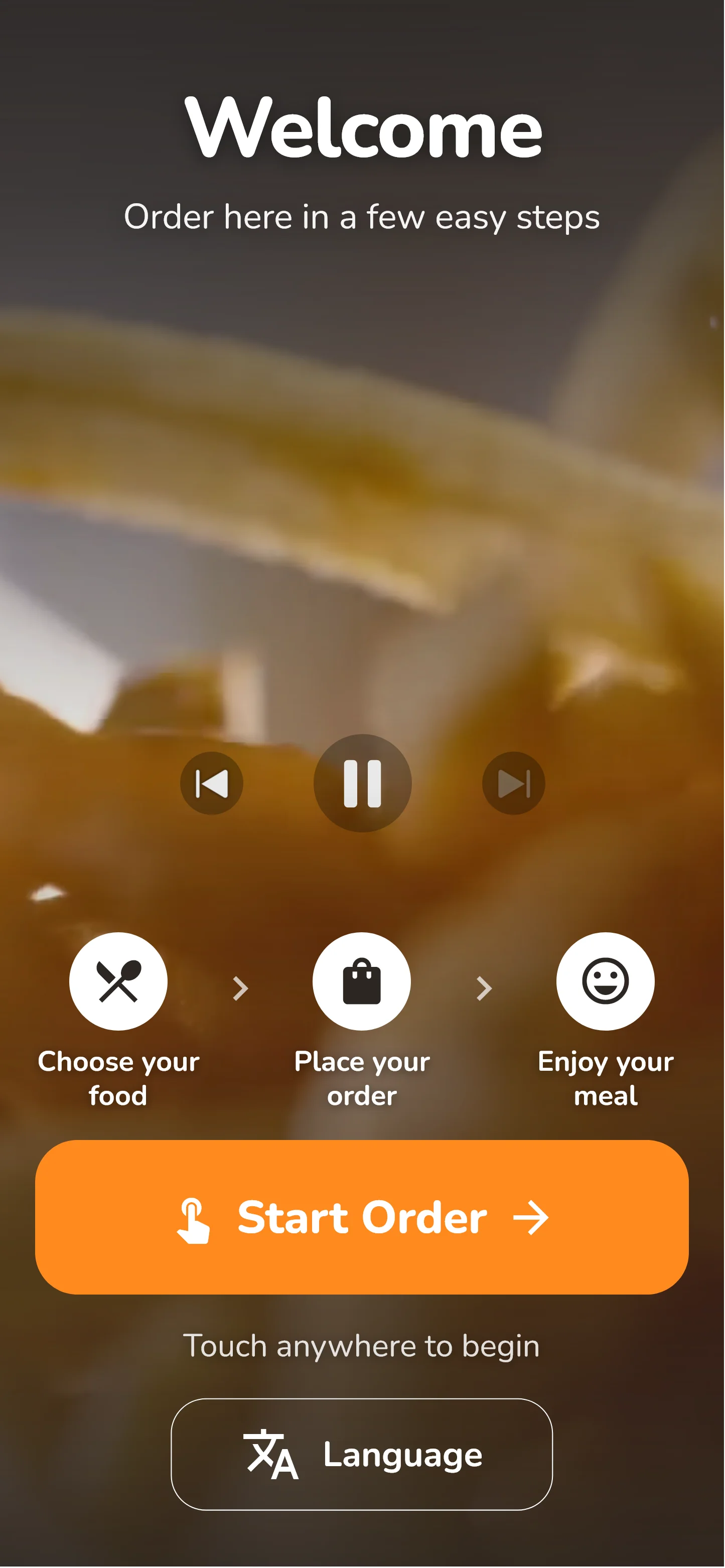
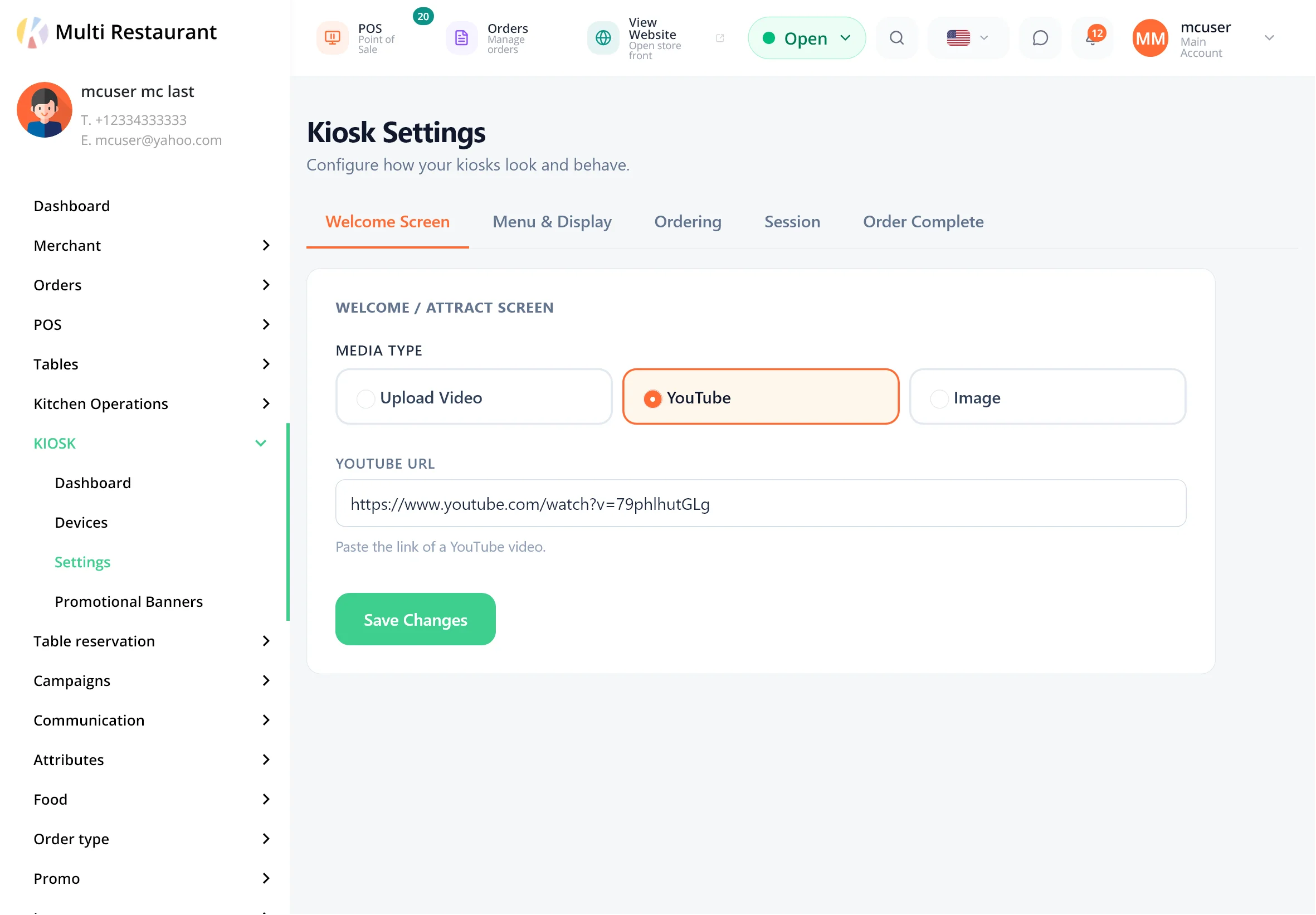
Display welcome media on the kiosk before customers begin ordering. One tap on Touch to Order starts a new order.
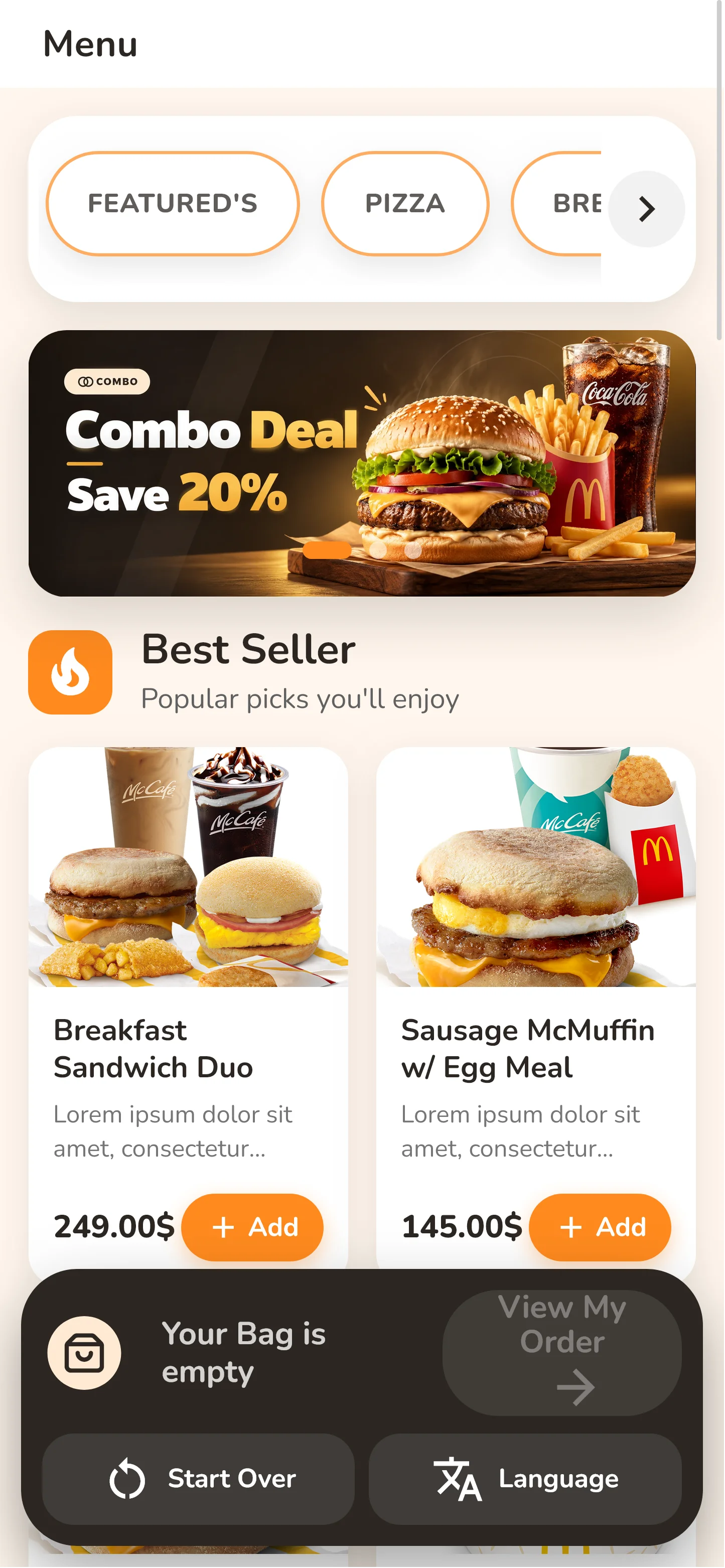
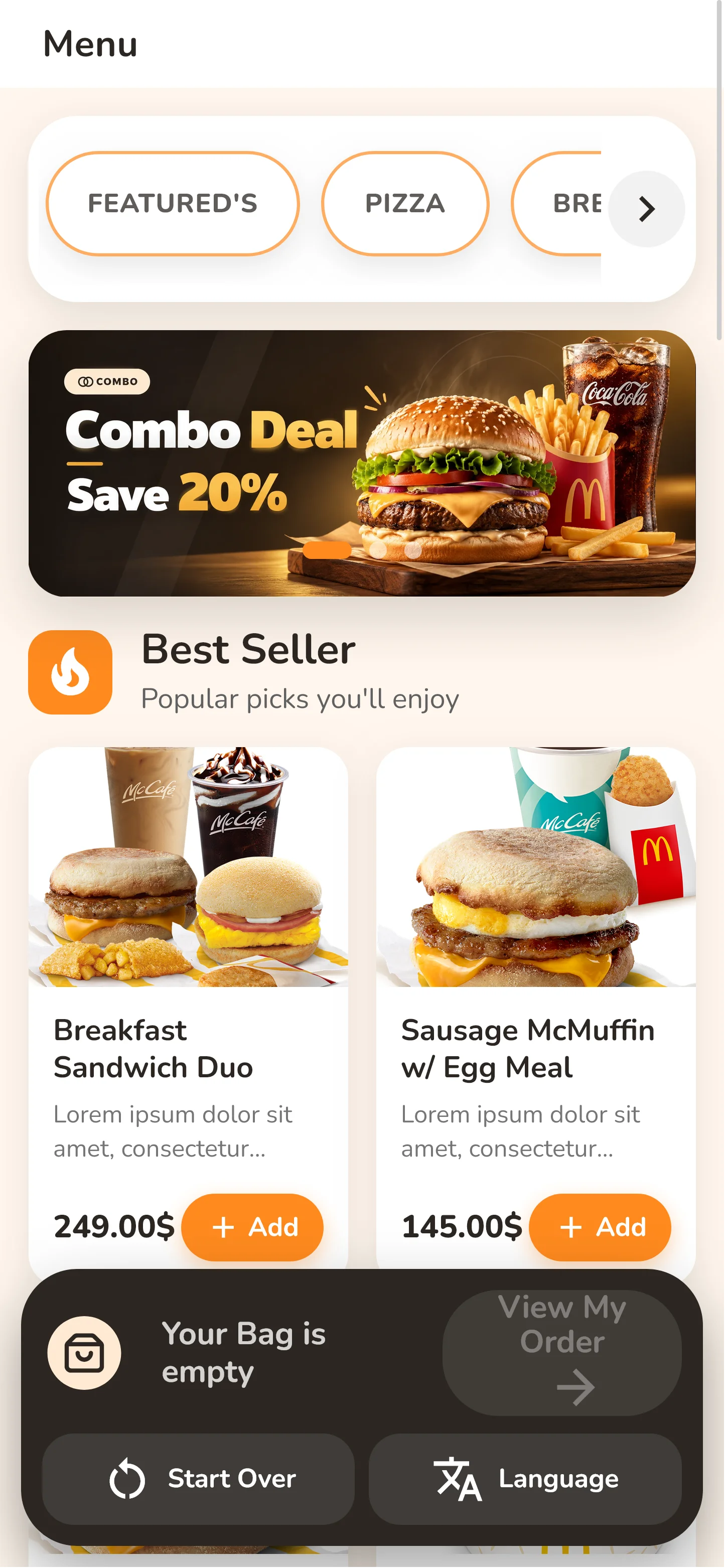
The main menu shows large food photos and clear prices, with controls sized for a touchscreen.
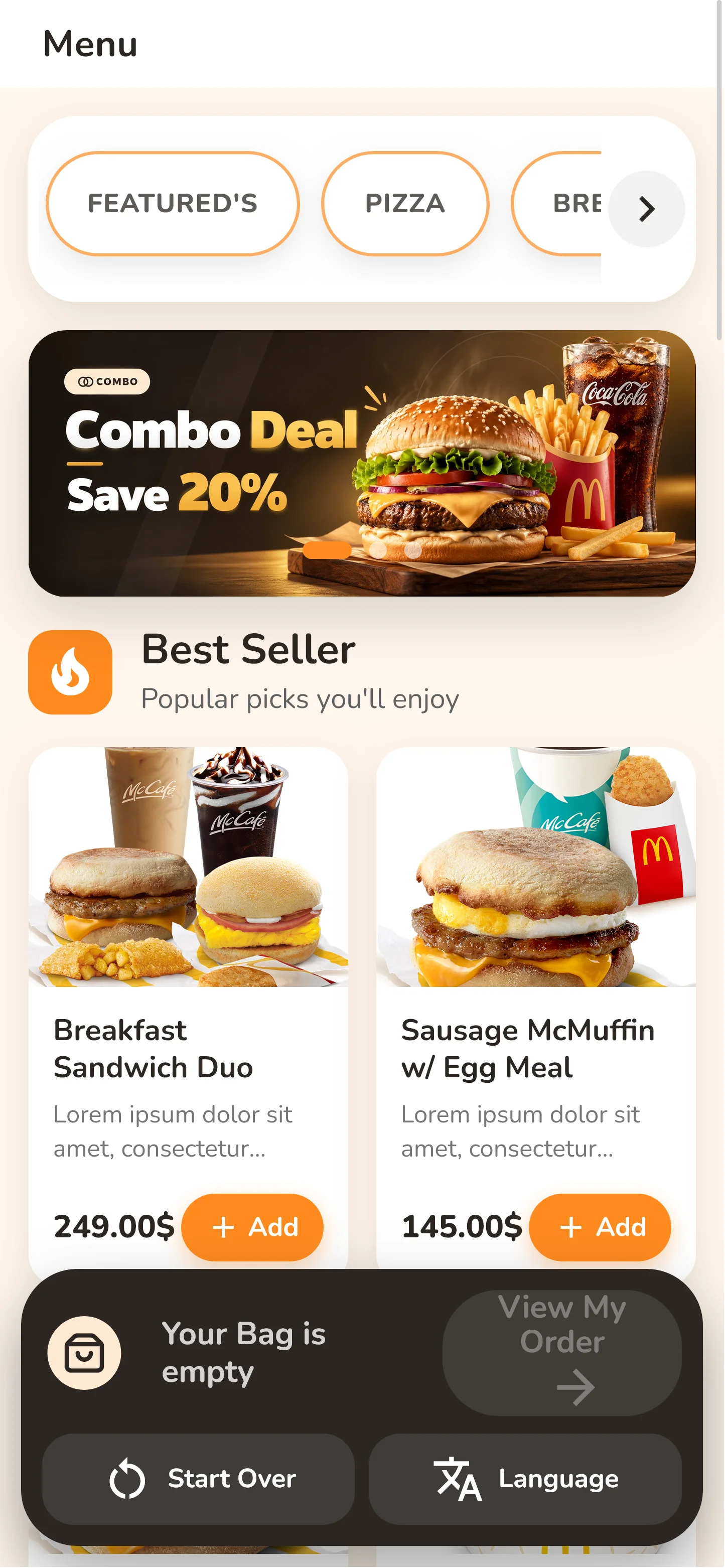
Choose the menu layout that suits your restaurant in Kiosk Settings.
Designed for discovery and promotions.
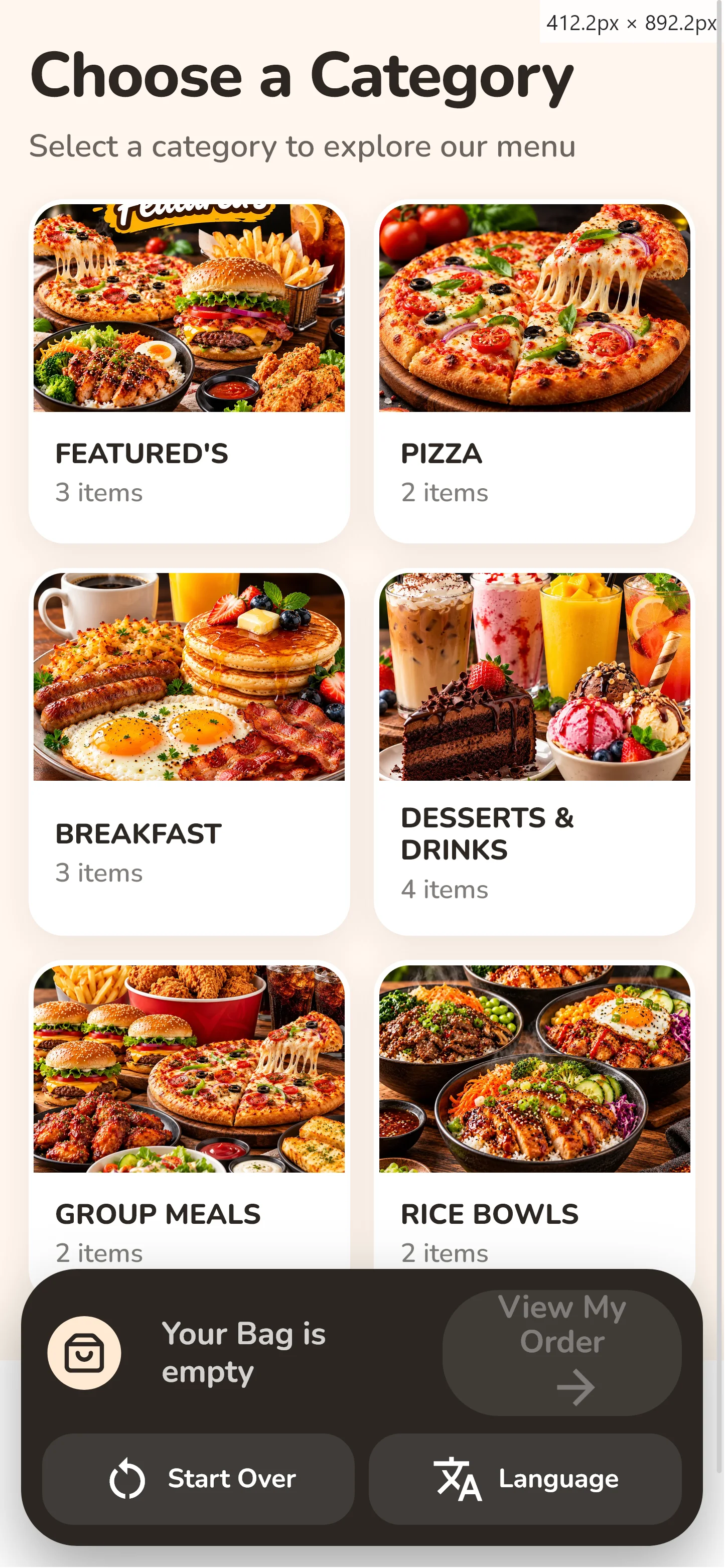
Customers start by selecting a visual category, then view its products.
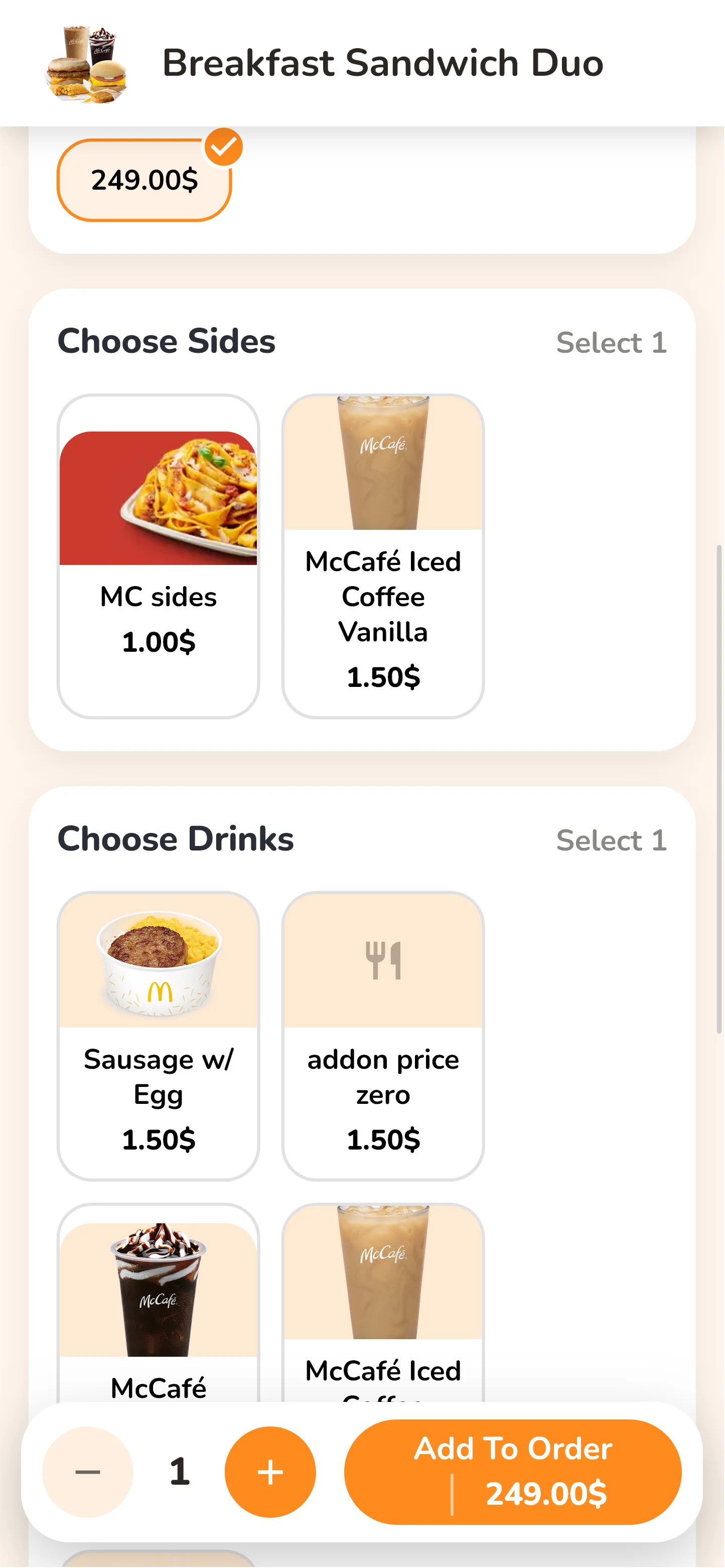
Each item opens a detail screen where customers choose sizes, options and add-ons. The price updates as they make their selections.
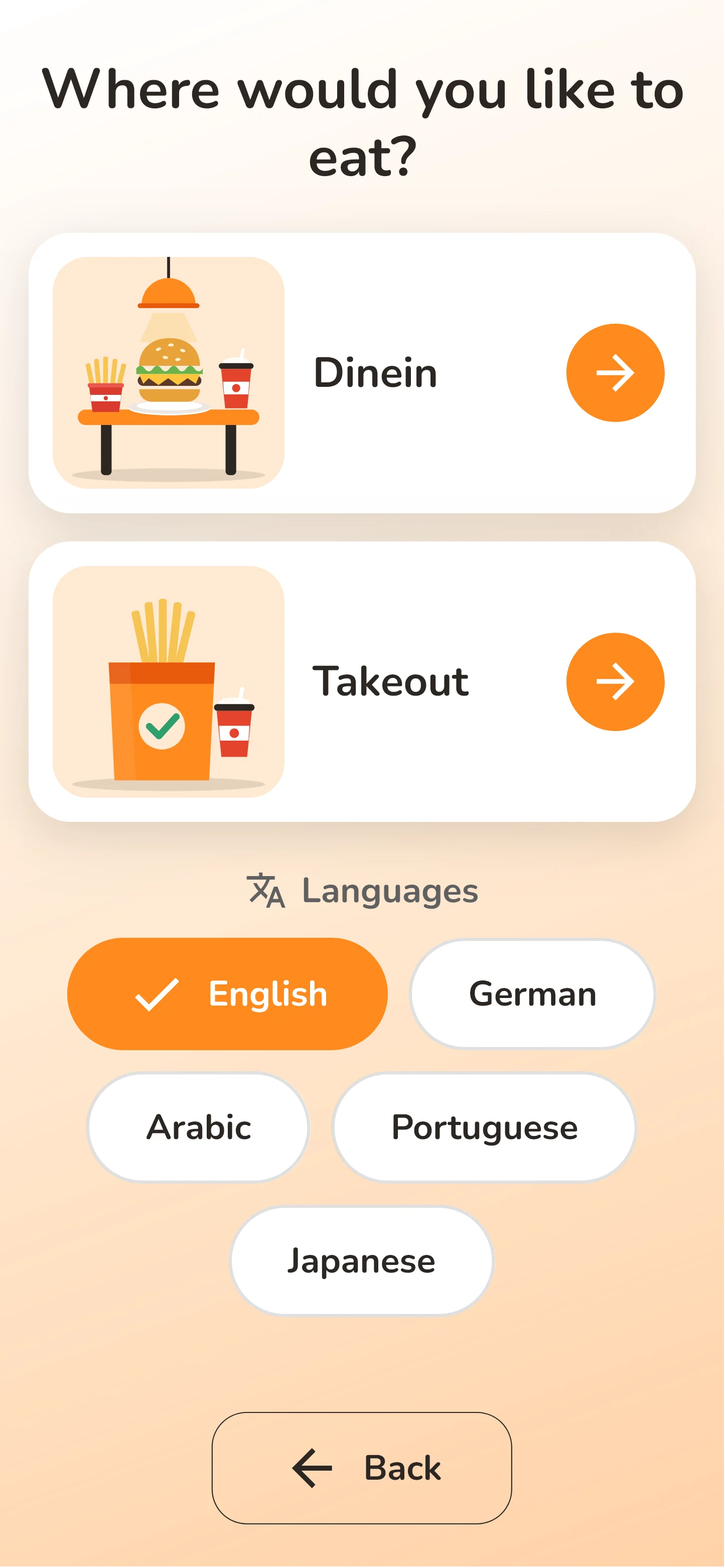
Customers choose how they want their order at the start. The restaurant controls which order types the kiosk offers, and dine-in customers can enter their table number.
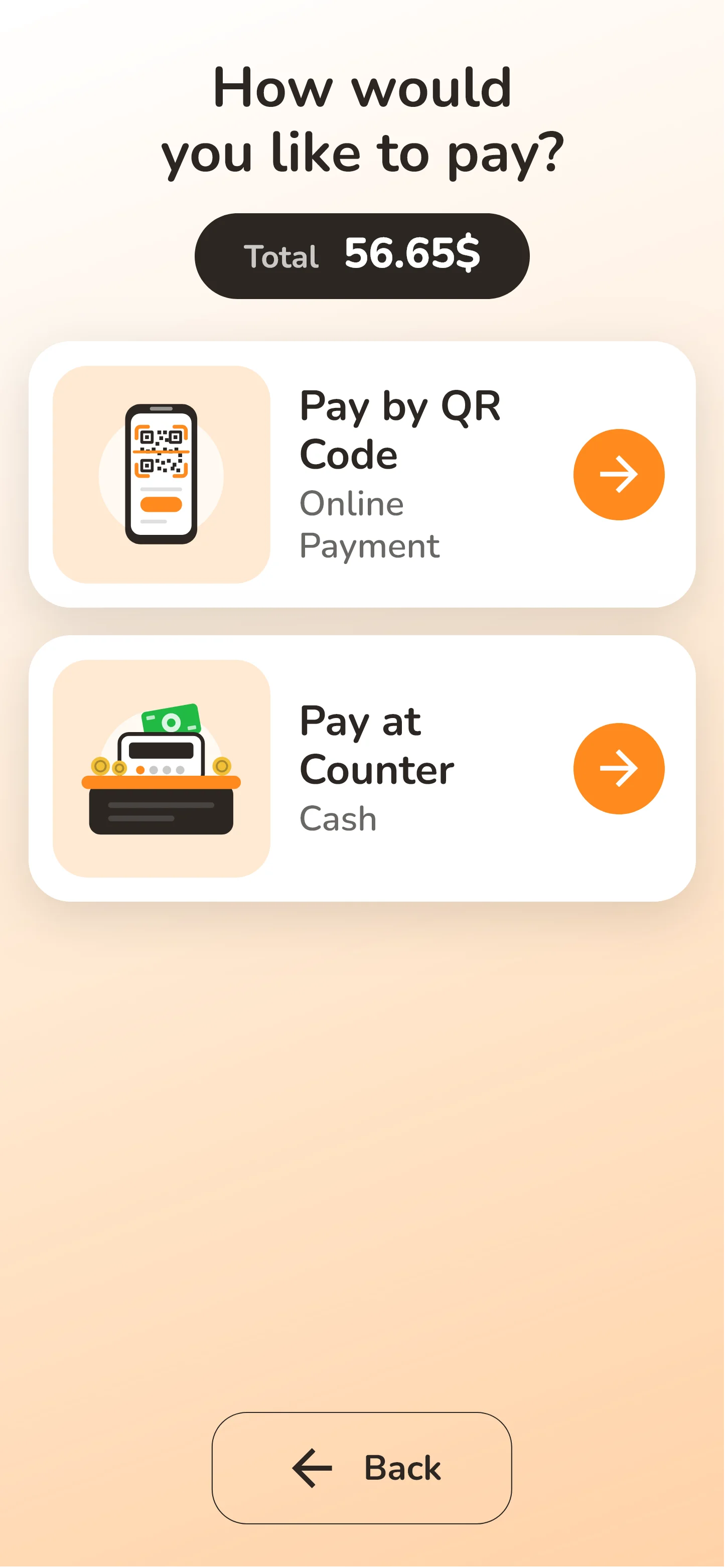
Customers choose how they want to pay at the end of their order.
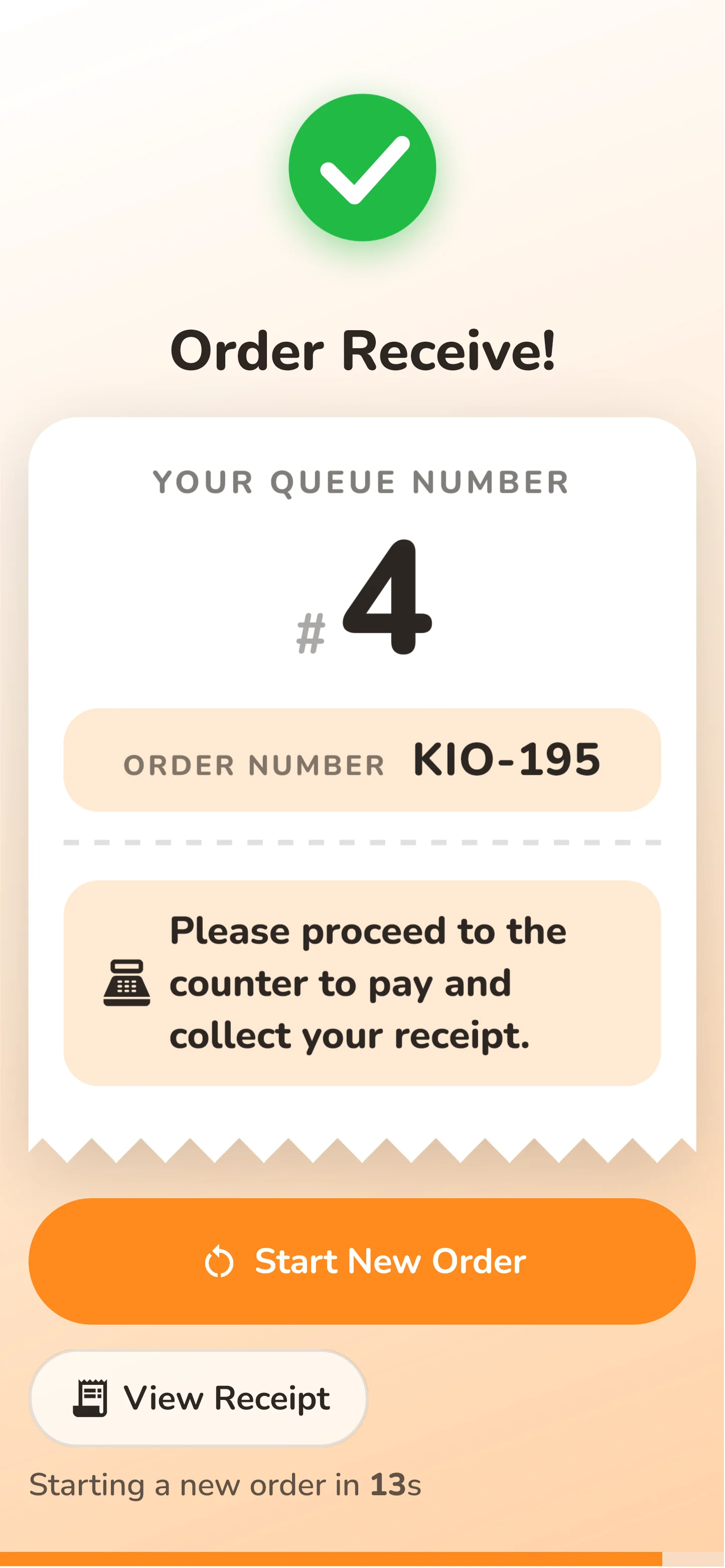
The customer places the order at the kiosk and pays at the restaurant counter.
The customer completes payment online from their own phone.
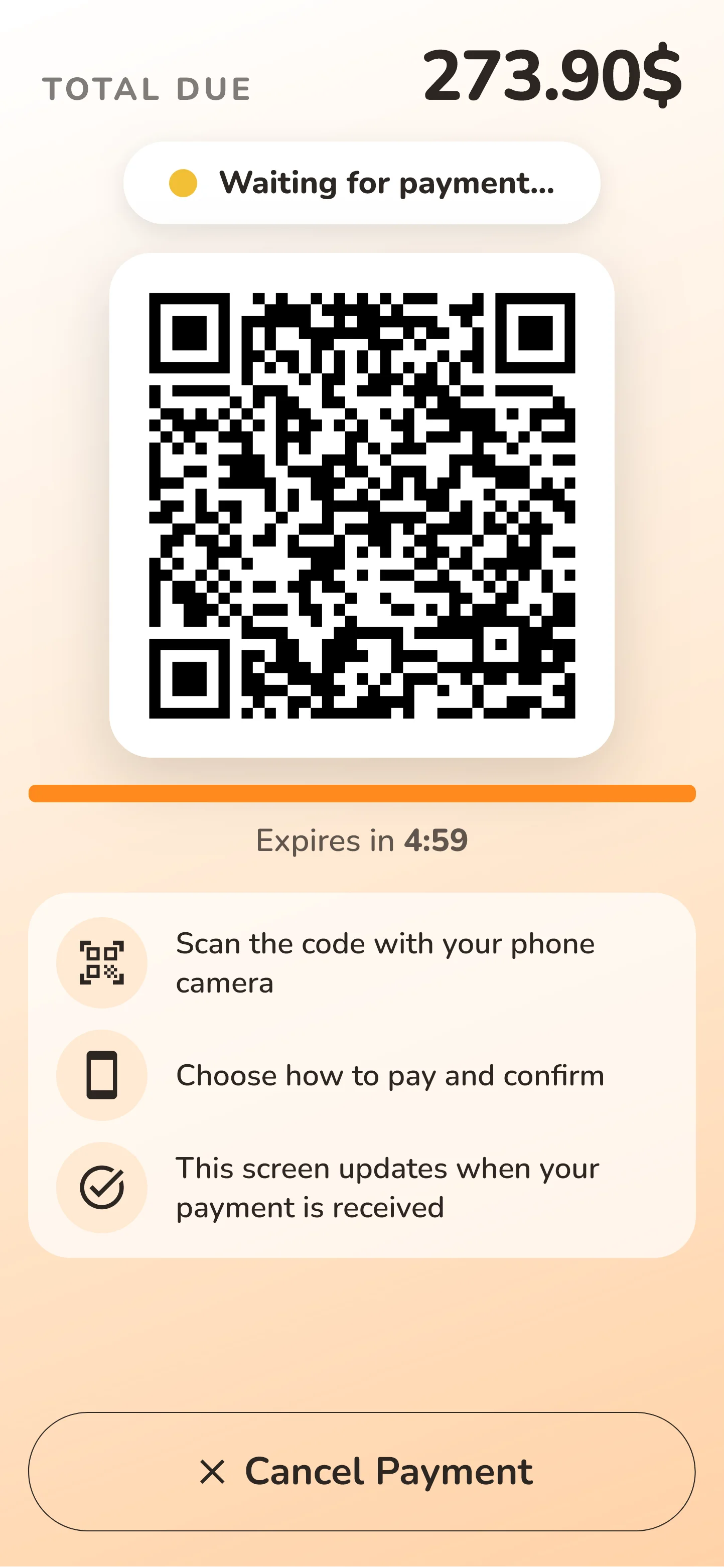
QR / online payment is available with the payment gateways that support kiosk payments in your KMRS installation.
Kiosk orders are created as regular KMRS orders. They go through the same order and kitchen workflow your staff already use, not a separate ordering system.
After placing an order, customers receive an easy-to-read order number on the kiosk screen, so collecting the order at the counter is straightforward.
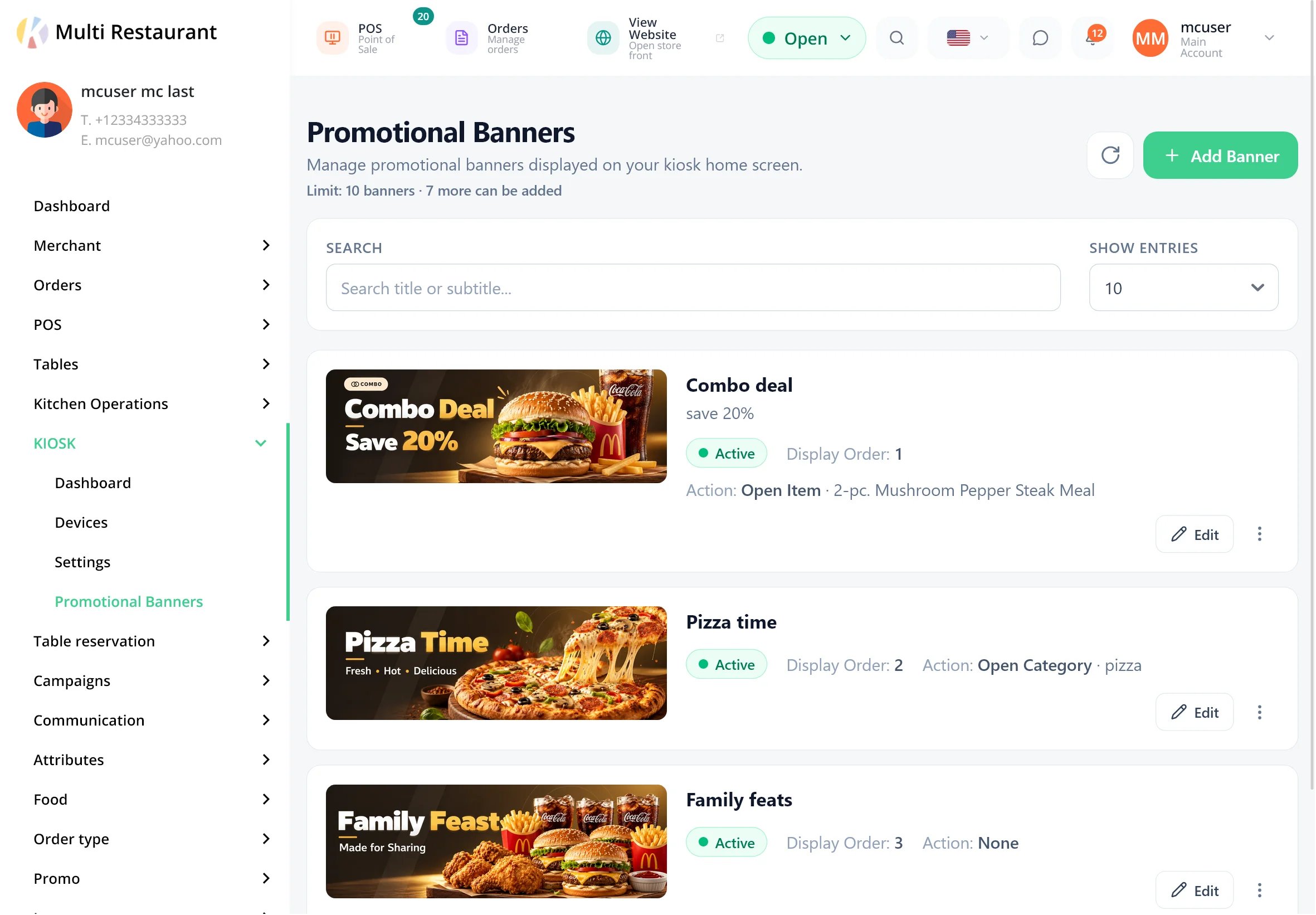
Create promotional banners that appear in the carousel on the kiosk main menu. Banners can link customers directly to a product or category.
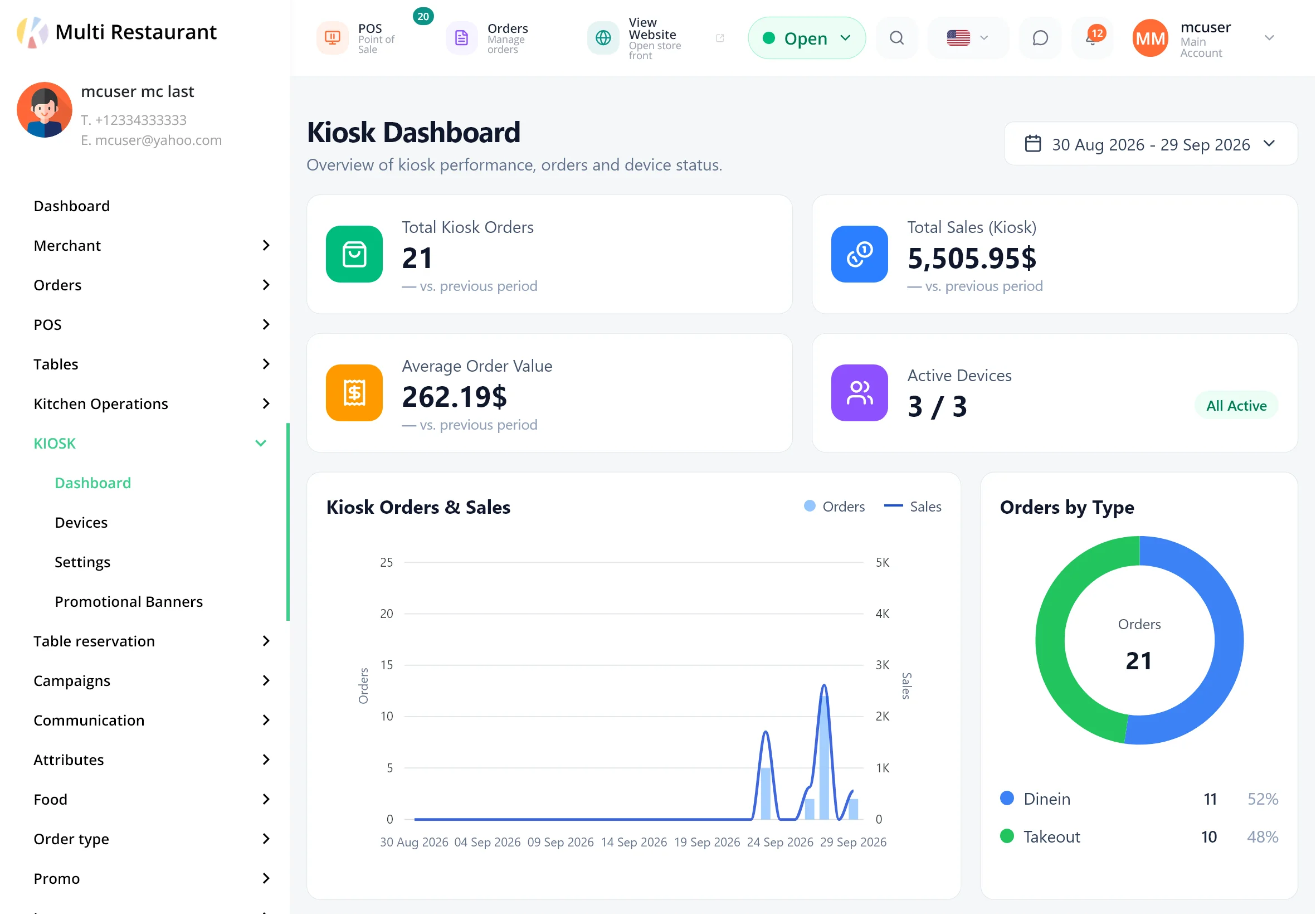
The kiosk pages are grouped under a Kiosk menu in the merchant panel.
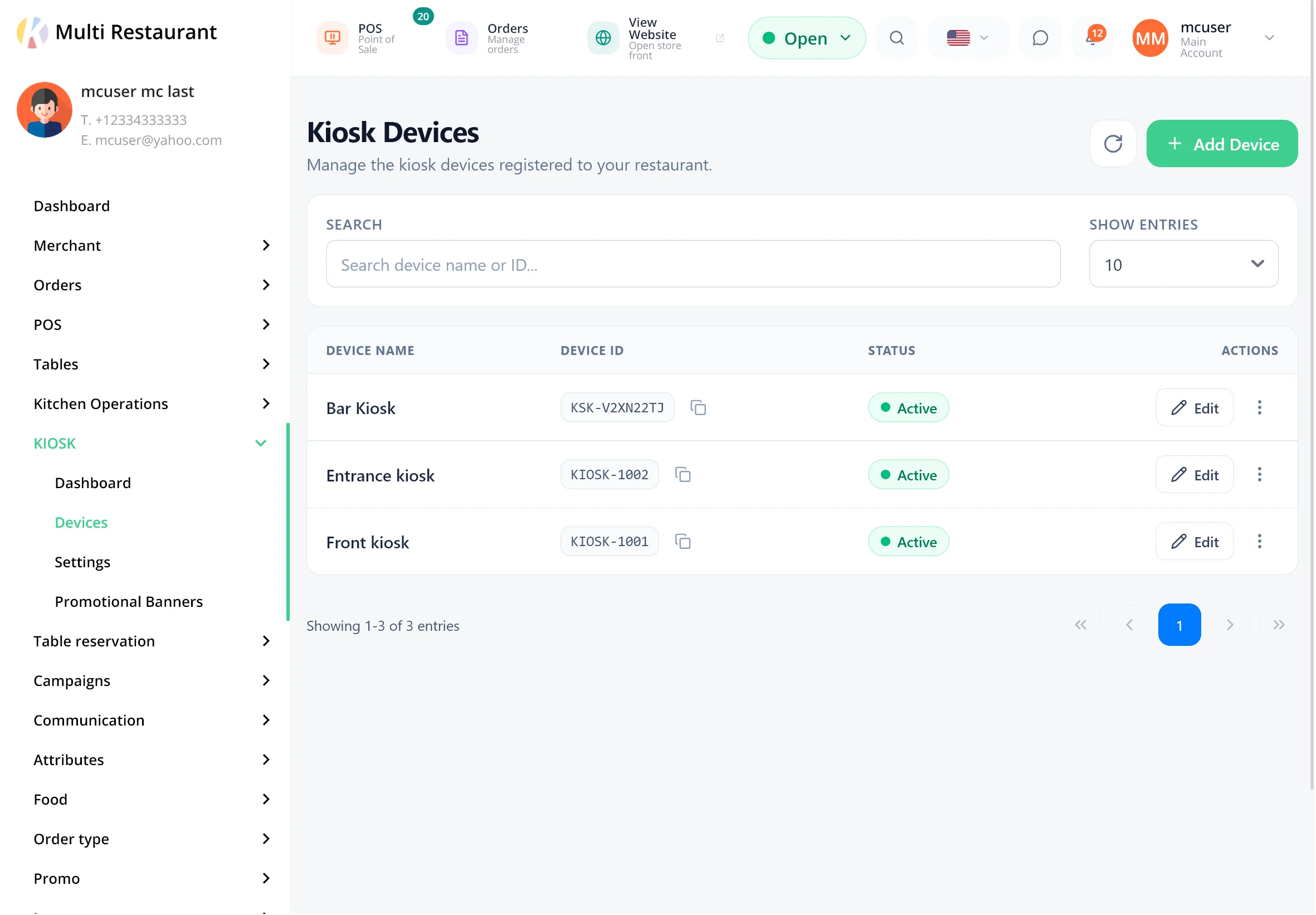
Register more than one kiosk device for the same restaurant, for example one at the entrance and one beside the counter. All devices use the merchant's shared Kiosk settings.
Merchants customize how the kiosk looks and behaves from Kiosk Settings.
The kiosk uses the merchant's existing Karenderia menu, so there is no separate food catalogue to maintain.
Update your menu in KMRS and the kiosk uses the same data.
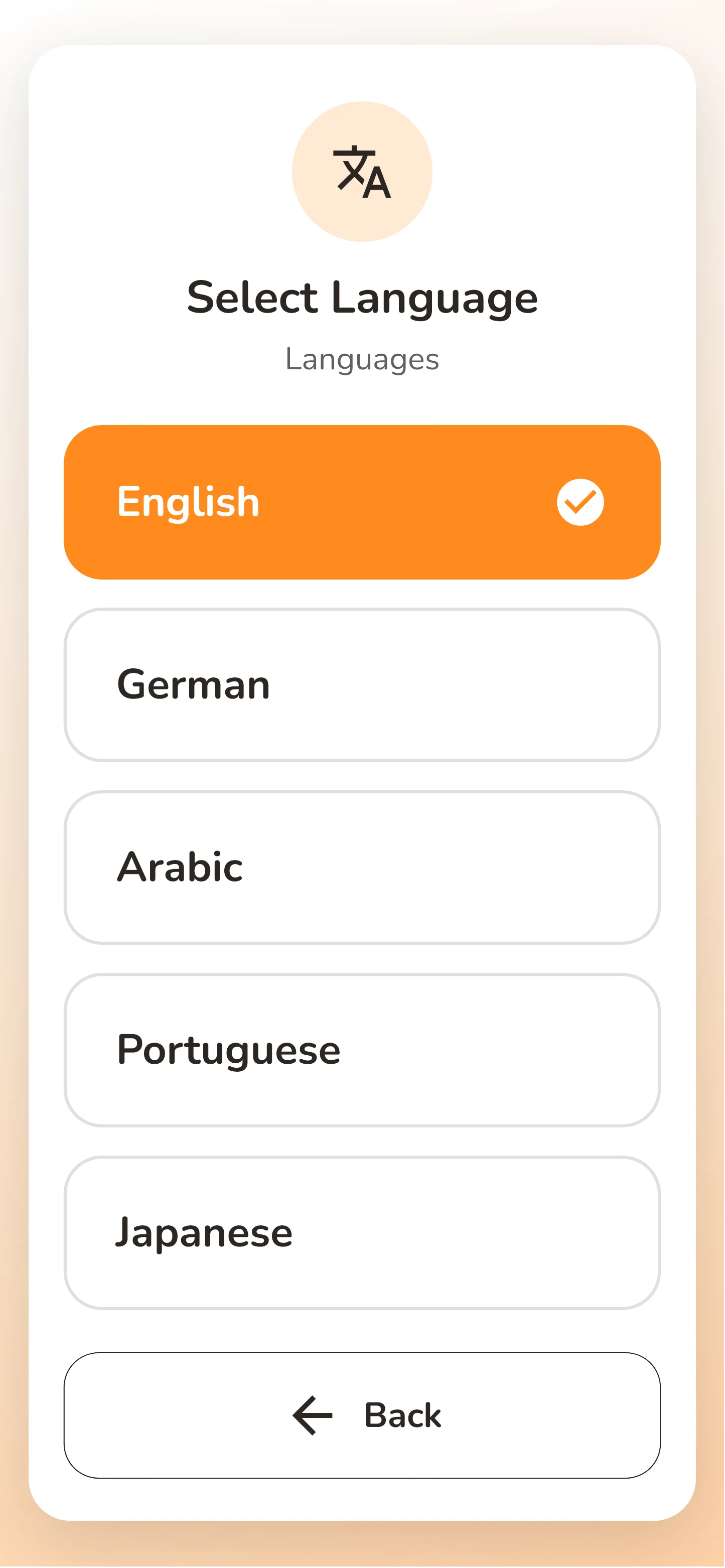
Use the available Karenderia language translations to provide a localized kiosk experience.
Designed for touchscreen ordering, in portrait or landscape orientation.
Actual screens from the kiosk and the merchant panel. Click any screenshot to enlarge it.
No. This is an addon for Karenderia Multiple Restaurant System (KMRS). KMRS is required to use it.
Yes. The kiosk integrates with the merchant's existing menu and order system, so there's no separate catalogue to maintain.
Yes, when those order types are enabled by the merchant. Dine-in customers can enter their table number.
Yes. Customers can place their order at the kiosk and pay at the restaurant counter.
Yes, with payment gateways that support kiosk payments in your KMRS installation. The kiosk displays a payment QR code, the customer scans it and completes payment on their phone, and the kiosk confirms the order after successful payment.
Yes. Merchants can register multiple kiosk devices. All devices use the merchant's shared Kiosk settings.
Yes. The welcome screen supports an uploaded image, an uploaded video or a YouTube video, configured in Kiosk Settings.
Yes. Promotional banners are managed from the merchant Kiosk panel and can link customers directly to a product or category.
Yes. The kiosk includes a language selector and uses the available Karenderia language translations.
Give customers a modern touchscreen ordering experience connected to your Karenderia restaurant system.